Sold your vehicle or no longer want it listed? You can update the status of your KSL Cars listing from My Listings in the app or on KSL.com.
Mobile App
Change your listing status in the app
-
Open the KSL Classifieds app and tap My Account.
-
Tap My Listings.
-
Select the Cars tab.
-
Find the listing you want to update.
-
Tap the ⋯ menu next to the listing, then choose Mark as Sold or Delete.
-
Confirm your selection.
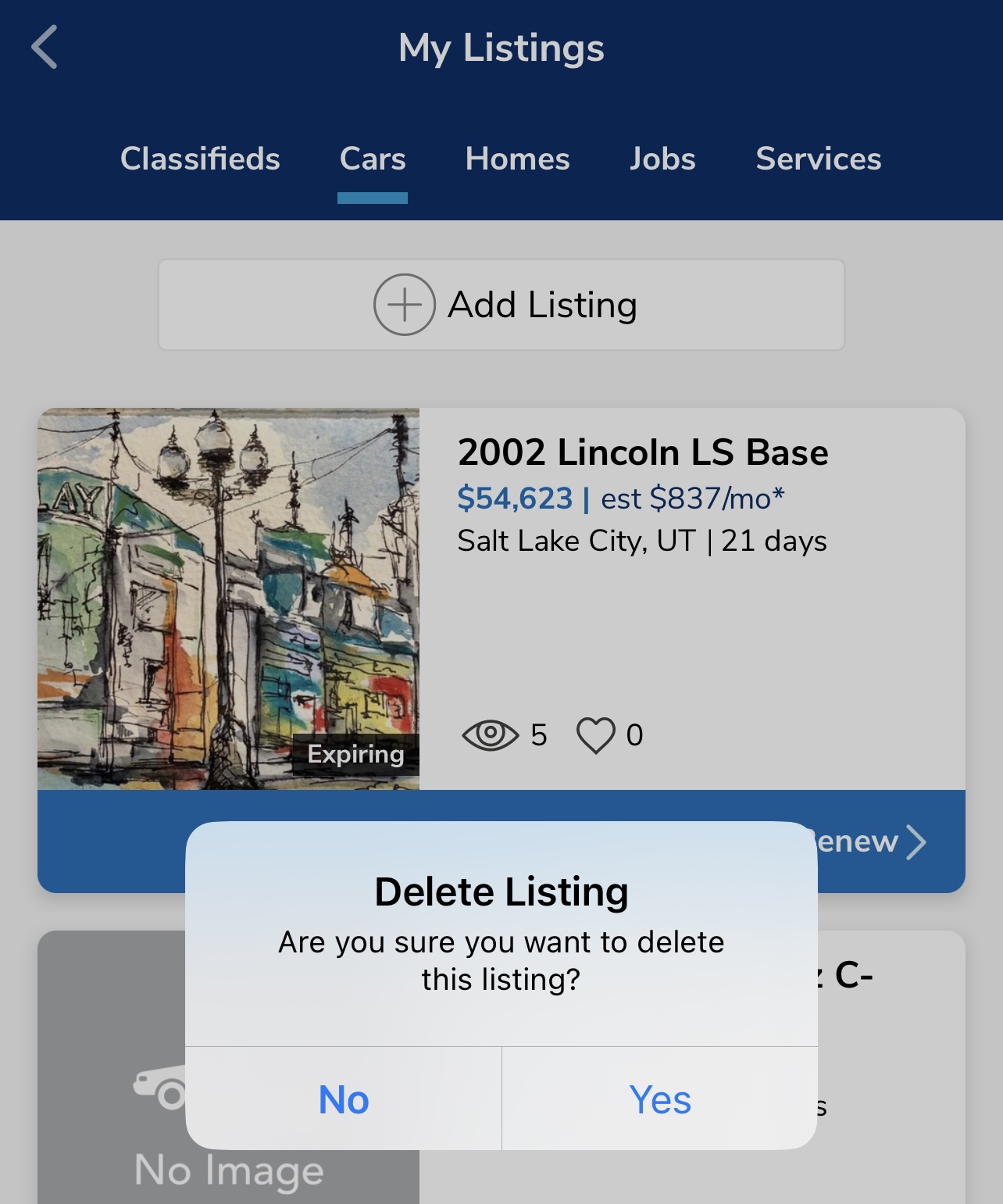
About these options: Mark as Sold removes the listing from public view while keeping it in your account. Choose Delete only when you want to permanently remove the listing.
KSL.com
Change your listing status on KSL.com
-
Go to KSL.com, open the Cars menu, and click My Listings.
-
Find the listing you want to update.
-
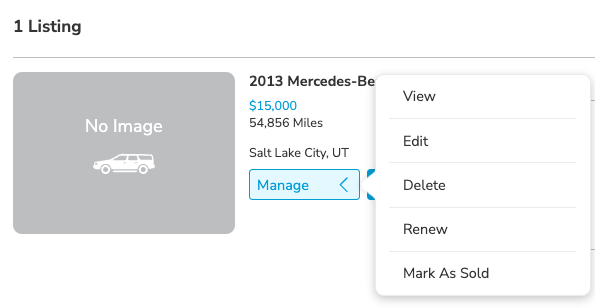
Click Manage, then select Mark as Sold or Delete.
-
Confirm your selection.

Make a sold listing available again
If you marked a listing as sold and would like to relist it, open its ⋯ menu in the app or Manage menu on KSL.com, then select Make Available.
Need more help?
If you have questions about your KSL Cars listing, contact KSL Support at support@ksl.com or 801-515-2309. We’re happy to help.
Comments
Article is closed for comments.